
Content Operations
NotebookLM Research with Claude Code: Grounded Answers
Run NotebookLM research from Claude Code: set up the Google sign-in, query your notebooks, follow up on gaps, and cite source-grounded answers.
NotebookLM research means asking questions that Google's NotebookLM answers from the documents you added to a notebook, with citations that point back to those documents instead of the open web. With Claude Code and the /claudeblog notebooklm command, you can ask those questions from your terminal, follow up until the answer is complete, and feed the result straight into a blog draft.
This guide covers what source-grounded research is good for, how the skill connects to NotebookLM, what you need to set it up, and the limits you should plan around.
Key takeaways
- Source-grounded research answers questions from a fixed set of documents you chose, so each claim can be traced to a named source.
/claudeblog notebooklmdrives NotebookLM through a headless Chrome browser signed in to your Google account. The skill lists no API key, only a one-time Google sign-in.- You add documents in the NotebookLM web app yourself. The skill asks questions of notebooks; it doesn't upload sources to them.
- The blog writing workflow uses your notebooks when they're set up and quietly falls back to web research when they aren't.
- Grounded doesn't mean correct. Check each answer against the passage it came from before a number goes into a published post.
What is source-grounded research and why does it matter?
A general AI chat answers from what the model learned in training, plus whatever it finds on the web. That's fine for brainstorming, but you often can't tell where a specific sentence came from. Source-grounded research flips this: you supply the sources, and the answer has to come from them. When the answer cites a document, you can open that document and find the passage.
NotebookLM is Google's research notebook built on this idea. You create a notebook, add your documents, and ask questions. Gemini answers from the sources in that notebook and cites them.
For SEO content, this helps in three ways:
- Original information. Your best material often isn't on the web at all: interview notes, internal research, product documentation, survey exports, talk transcripts. Google's guidance on creating helpful, people-first content asks whether a page provides original information, research, or analysis. Grounded research lets you pull that material out of your own files.
- Traceable claims. Every statistic in a post should lead back to a source an editor or reader can check. When the answer names its document, the trail is already there.
- A narrower scope. Limiting the model to a known set of sources makes claims from nowhere less likely.
Less likely isn't impossible. The model can still misread a table, merge two figures, or drop the context that made a number meaningful. And a document being in your notebook doesn't make it right: an outdated internal report is still outdated. Treat grounded answers as well-sourced leads and verify them before they ship. Our guide to fact-checking AI content with Claude Code covers that step in detail.
How does the NotebookLM skill connect to NotebookLM?
The command is part of the Claude Blog suite (see the full ClaudeSEO skill list). It works by automating the NotebookLM web app in a browser: each question launches a headless Chrome session (a browser with no visible window), loads your saved Google sign-in, opens the notebook, asks the question, collects the answer, and closes the browser again.
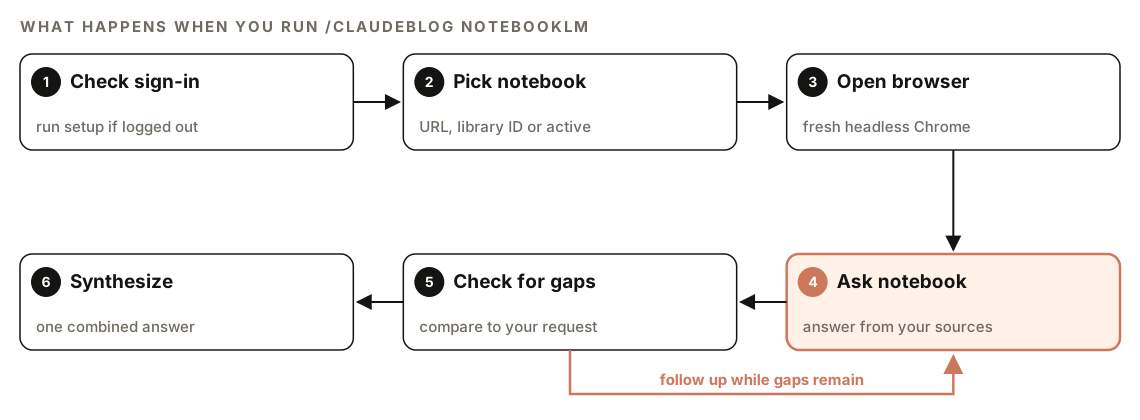
- Check sign-in. Before any query, the skill checks whether you're authenticated. If you aren't, it tells you to run the setup command.
- Pick the notebook. It uses the notebook you named by URL, or by ID from your library. If you named neither, it uses your active notebook. If there's no active notebook, it shows your library and asks you to choose.
- Open a browser. A fresh headless Chrome session starts for each question.
- Ask the notebook. The question goes to NotebookLM, which answers from that notebook's sources.
- Check for gaps. Every response ends with a prompt to follow up. Instead of handing you the first answer, Claude compares it with your original request. If something is missing, it asks a follow-up question and repeats until the information is complete.
- Synthesize. Claude combines all the answers into one response before replying to you.
Because every question starts a new browser session, NotebookLM doesn't remember earlier questions. Write each question so it makes sense on its own.
What do you need to set it up?
The skill lists four prerequisites:
- A Google account with NotebookLM access
- Python 3.11 or newer
- Google Chrome, which the skill installs on first run through Patchright, a browser automation library
- A one-time, interactive Google sign-in in a visible browser window
You don't install Python packages by hand. The skill's wrapper script creates its own virtual environment, installs dependencies, and sets up Chrome, so the first run takes longer than later ones.
Run the setup once:
/claudeblog notebooklm setupA browser window opens, and you sign in to Google as usual. The skill keeps that session in a local browser profile, combined with saved cookies, so later questions run headless without asking you to sign in again. To confirm it worked:
/claudeblog notebooklm statusIf the session expires or you want to use a different account, the skill can re-authenticate or clear its saved sign-in data.
Where your data lives
Everything is stored inside the skill's own folder: library.json holds your notebook list, auth_info.json records your sign-in status, and browser_state/ is the Chrome profile with your cookies. These paths are excluded from git. Treat browser_state/ like a password, because it holds a signed-in Google session. Never copy it into a project repository or share it.
Because the skill launches Chrome on your computer, it works in Claude Code on your own machine, not in web-based sessions.
How to run NotebookLM research with Claude Code
Ask a question of your active notebook:
/claudeblog notebooklm What do the interview notes say about onboarding problems?
/claudeblog notebooklm ask Which objections appear in the sales call transcripts?
You can also ask in plain English, and Claude picks the matching skill:
Ask my NotebookLM notebook on [topic] what the sources say about [question], and keep following up until you have a complete answer with source titles.To query a specific notebook instead of the active one, pass its URL or its ID from your library:
/claudeblog notebooklm ask [question] --notebook-url https://notebooklm.google.com/notebook/[id]
/claudeblog notebooklm ask [question] --notebook-id [library-id]
These are the subcommands the skill documents:
| Command | What it does |
|---|---|
/claudeblog notebooklm ask <question> | Ask the active or named notebook |
/claudeblog notebooklm discover <url> | Summarize a notebook before you add it |
/claudeblog notebooklm library list | List the notebooks in your library |
/claudeblog notebooklm library add <url> | Add a notebook to your library |
/claudeblog notebooklm library search <query> | Find notebooks by keyword |
/claudeblog notebooklm library remove <id> | Remove a notebook from your library |
/claudeblog notebooklm setup | One-time Google sign-in |
/claudeblog notebooklm status | Check your sign-in status |
/claudeblog notebooklm cleanup | Reset browser state and keep your library |
How to build a notebook library
Start in the NotebookLM web app. The skill can't upload documents for you, so you create notebooks and add sources there first. A notebook per project or topic keeps answers focused, because NotebookLM can only draw on what's in the notebook you ask.
Then add each notebook to the skill's library. Every entry needs four things: the notebook URL, a name, a description, and a list of topics. The skill doesn't guess these. If you don't know exactly what a notebook contains, run discovery first:
/claudeblog notebooklm discover https://notebooklm.google.com/notebook/[id]Discovery asks the notebook for an overview of its content and topics, then adds it to the library with a name, description, and topics based on that answer. If discovery isn't possible, Claude asks you for the details instead of inventing them. Good descriptions and topic keywords matter later, because they're what library search uses to find the right notebook. Once your library has a few entries, set the one you're working with as active so plain questions go to it.
How to read and use the answers
When you run the command yourself, Claude replies with a synthesized answer built from the original response and any follow-ups. When the writing workflow calls the skill, it returns a fixed block:
### NotebookLM Research
- **Source:** [Notebook name]
- **Question:** [What was asked]
- **Answer:** [Source-grounded response from your documents]
- **Source Quality:** Tier 1 (user-uploaded primary documents)
"Tier 1" describes where the answer came from: your own primary documents. It doesn't say whether the claim is true. An answer drawn from a draft memo is still Tier 1.
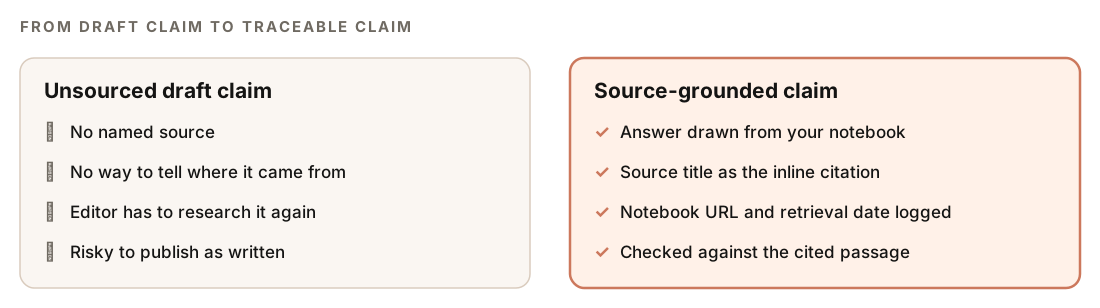
For citations, the skill follows its FLOW evidence guidance: use the source title returned with the answer as the inline citation, and record the notebook URL plus the date you retrieved the answer as the bibliography entry. That gives your editor a clear trail. For the published post, link the original public source when one exists, because readers usually can't open a private notebook.
Before a number goes live, open the source in NotebookLM and find the passage. Confirm the figure, the unit, the date, and the context match what the answer says.
How it fits into the Claude Blog writing pipeline
You don't have to run the command by hand for it to help. When you write with /claudeblog write, the 4-agent content pipeline and its researcher agent can query a notebook for research on your topic. When it's called this way, the skill:
- Checks your sign-in, and returns an empty result without an error if you're not signed in
- Asks the notebook the research question
- Returns the structured block shown above
If NotebookLM isn't configured, or a query fails, the writing workflow carries on with web-based research. NotebookLM never blocks a draft. The FLOW framework requires a verified source before any statistic goes public, and grounded answers with a recorded citation trail are one of the most direct ways to meet that rule. Our FLOW framework guide explains the evidence-led approach behind it.
Sourced claims also help at the review stage. The 100-point content scoring rubric includes E-E-A-T signals such as source fidelity and evidence basis.
What are the limits of the NotebookLM skill?
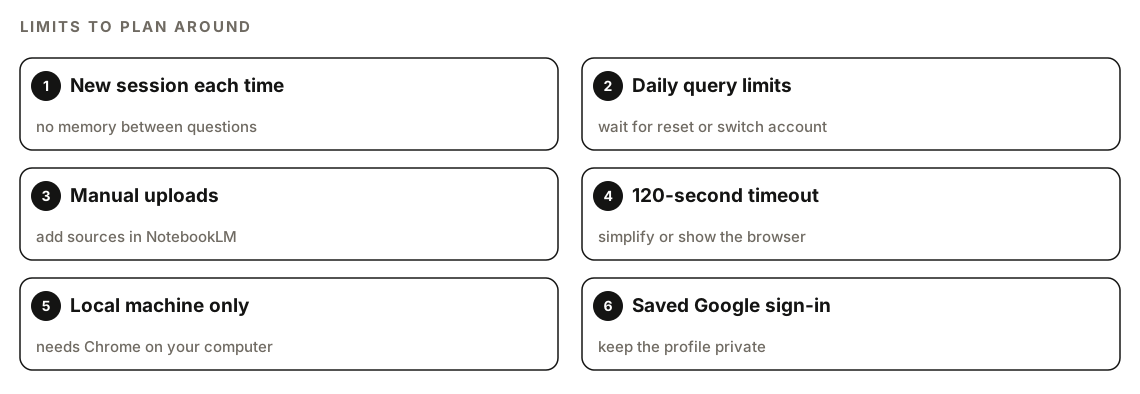
Two of these deserve a note. Each question is a new browser session, which adds a few seconds of launch and teardown time, so a long research session with many follow-ups takes a while. And Google limits how many questions an account can ask per day, notably on free accounts; when you hit the limit, wait for the daily reset or switch to another Google account.
When something goes wrong, the fix is usually short:
| Problem | What to do |
|---|---|
| Not signed in | Run /claudeblog notebooklm setup |
| Notebook not found | Check /claudeblog notebooklm library list |
| Query times out after 120 seconds | Ask a simpler question, or show the browser to debug |
| Daily limit reached | Wait for the reset or switch Google account |
| Browser crashes | Run /claudeblog notebooklm cleanup, then sign in again |
Doing it without the skill
You can get much of the value of grounded research with plain Claude Code and local files. If your documents are in your project folder, this prompt keeps Claude to them:
Read every file in ./research/. Answer this question using only those files: [question]. After each sentence, name the file it came from and quote the exact passage. If the files don't answer part of the question, say so instead of filling the gap.If you prefer NotebookLM's interface, ask your questions there and bring the answers back:
Here are answers I copied from NotebookLM, with their source titles: [paste answers]. Compare them to what I need for this post: [goal]. List what's still missing, then write three follow-up questions to ask the notebook.The skill adds the parts that are tedious by hand: asking from the terminal, managing a library of notebooks, following up automatically until gaps are closed, and feeding grounded research into the writing pipeline with a silent fallback when NotebookLM isn't available.
Mistakes to avoid
- Publishing grounded answers unchecked. Find the passage and confirm the number, unit, and date first.
- Filling notebooks with weak sources. Outdated or unreliable documents produce grounded but wrong answers.
- Asking vague questions. "Tell me everything" invites summaries; specific questions get specific answers.
- Citing only a private notebook. Readers need a public source they can open.
- Committing sign-in data. Keep
browser_state/andauth_info.jsonout of every repository. - Guessing library descriptions. Use discovery so library search finds the right notebook later.
Related guides
- How to fact-check AI content with Claude Code, the verification step for every grounded answer
- The FLOW framework for SEO and content, which sets the verified-source rule
- How to write a blog post with Claude Code, the full workflow that research feeds into
FAQ
What is NotebookLM used for in research?
NotebookLM answers questions from documents you add to a notebook, with citations to those sources. Writers use it to pull findings out of their own material, such as interview notes, reports, and transcripts, instead of relying on web search or a model's memory.
Can NotebookLM answers still be wrong?
Yes. Grounding reduces unsupported claims, but the model can still misread a source, merge figures, or lose context, and a source can itself be outdated. Check each answer against the cited passage before you publish it.
Does the Claude Code NotebookLM skill need an API key?
No API key is listed. The skill needs a Google account with NotebookLM access, Python 3.11 or newer, Chrome (installed on first run), and a one-time sign-in. It then works through a headless browser using your saved session.
Can Claude Code upload documents to NotebookLM?
Not with this skill. You add sources in the NotebookLM web app, then the skill queries those notebooks. It can catalog notebooks in a local library and discover what each one contains.
Is my Google sign-in stored safely?
The sign-in lives in a Chrome profile inside the skill's own folder, and those files are excluded from git. Treat that folder like a password: don't copy it into a project or share it, and use the skill's option to clear its sign-in data if you stop using it.
What happens if NotebookLM isn't set up when I write a post?
Nothing breaks. When /claudeblog write calls the skill and you're not signed in, it returns an empty result without an error, and the workflow continues with web-based research.