
Content Operations
Blog Audio Narration with Claude Code and Gemini TTS
Add blog audio narration with Claude Code: summary, full or dialogue audio via Gemini TTS, an accessible embed, and transcripts done right.
Blog audio narration is a spoken version of a post that readers can play on the page instead of reading, or alongside reading. With Claude Code, /claudeblog audio generate <file> turns a markdown post into a spoken script, sends it to Google's Gemini text-to-speech (TTS) service, and gives you an MP3 file with ready-to-paste embed code.
This guide covers who benefits from audio narration, how the command works, which mode and voice to choose, how to embed the player, and how to handle transcripts and accessibility properly.
Key takeaways
- Audio narration helps people who prefer or need to listen, but it supplements the written post. Keep the full text on the page.
/claudeblog audio generate <file>offers three modes: a short spoken summary, a full read-aloud, and a two-speaker dialogue.- Claude writes the spoken script; Gemini TTS only turns it into sound. You need a Google AI API key, and Google's own pricing applies.
- The output is an MP3 (or a WAV file if FFmpeg isn't installed) plus an HTML5 audio embed with native controls.
- Label the player, never autoplay it, and publish a transcript for summary and dialogue audio, because those say things the article doesn't.
What is blog audio narration and who is it for?
Blog audio narration is an audio file of your article, or of a version of it, embedded in the post with a play button. Readers press play and listen while they commute, cook, or rest their eyes.
It helps several groups of readers:
- People with reading difficulties, such as dyslexia, who find long text tiring.
- People with low vision who would rather hear a natural voice than zoom in.
- People who simply prefer listening, or who want to take the post with them.
- Language learners, who can follow the text while hearing it.
Screen readers already read pages aloud for people who rely on them, so narration doesn't replace accessible text. It's an extra format with a natural-sounding voice.
What audio isn't is an SEO shortcut. Search engines work from the text on your page, so the written post still has to do the ranking work. Treat narration as a reader feature that makes a good post easier to use.
What the /claudeblog audio command does
The command is part of the Claude Blog suite (see the full ClaudeSEO skill list). It runs through a fixed sequence:
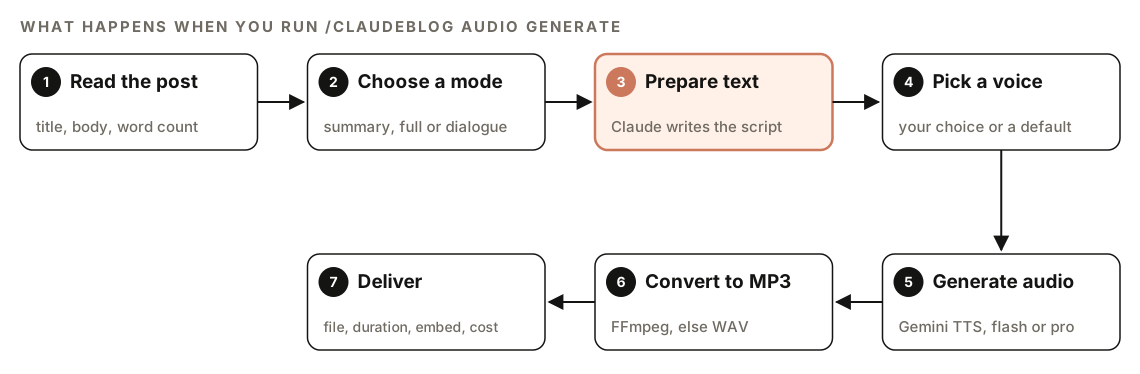
- Read the post. It extracts the title from the H1 or frontmatter, the markdown body, and an approximate word count.
- Choose a mode. It asks you, unless you already chose one: summary, full, or dialogue.
- Prepare the text. Claude rewrites the post for listening. This is the most important step: the script does TTS only, so the quality of the audio depends on the text Claude prepares.
- Pick a voice. It uses the voice you chose, or a default for the mode.
- Generate audio. The prepared text goes to Gemini TTS, using the
flashmodel by default orprofor higher quality. - Convert to MP3. FFmpeg converts the output to MP3. Without FFmpeg, you get a WAV file instead.
- Deliver. You get the file path, the duration, an HTML5 embed tag, the estimated API cost, and a suggestion for where to place the player.
Which narration mode should you use?
The skill documents three modes:
| Mode | Best for | Length | What you get |
|---|---|---|---|
| Summary | A quick audio overview | 1 to 2 minutes | A 200 to 300 word spoken summary |
| Full | Complete read-aloud | 5 to 15 minutes | The whole article as natural speech |
| Dialogue | Podcast-style listening | 3 to 8 minutes | A two-person conversation about the article |
Summary mode
Claude writes a 200 to 300 word summary meant to be heard, not read. It opens with the article's key finding or answer, covers three to five main takeaways, and closes with practical advice. There's no markdown and no "In this article" style commentary, and it uses conversational transitions such as "Here's what matters".
Full mode
Full mode reads the whole article, but a markdown file can't simply be read out loud. Links, code, and frontmatter would sound like noise. Claude converts the post first:
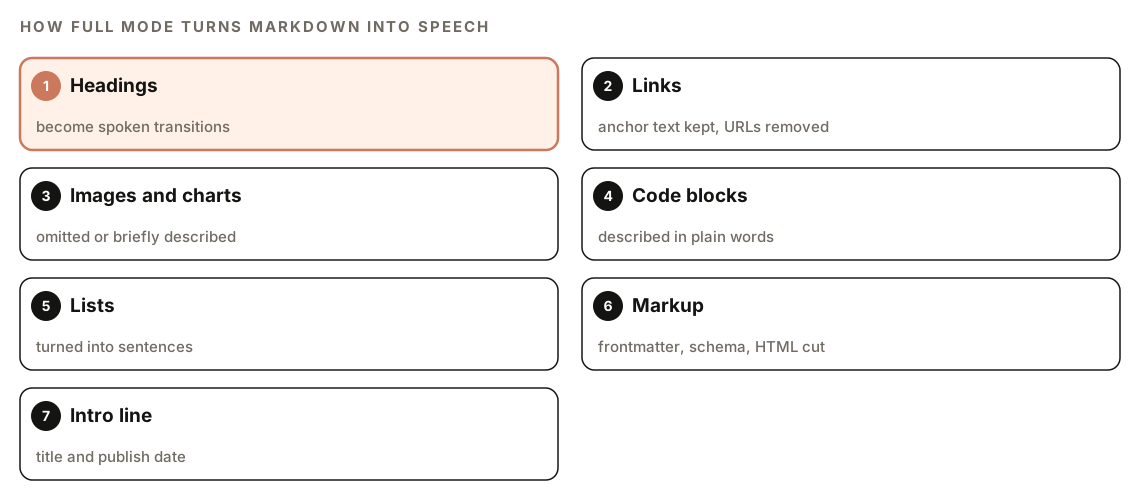
Headings become spoken transitions such as "Next, let's look at", links keep their anchor text without the URL, and images and charts are left out or briefly described. Code blocks are explained in plain words, lists become sentences, and frontmatter, schema markup, and HTML tags are removed. The script opens with a short intro line naming the title and publish date.
Dialogue mode
Dialogue mode writes a conversation between two speakers: a curious host who asks good questions and an expert who gives clear answers. The script runs 15 to 25 exchanges and aims for natural speech ("That's a great point") over stiff phrasing.
How to choose a voice
Run the voices subcommand to see the catalog of available voices with their characteristics:
/claudeblog audio voicesThe skill recommends voices by content type:
| Content type | Recommended voices |
|---|---|
| Article narration | Charon (informative), Sadaltager (knowledgeable) |
| Tutorial or how-to | Achird (friendly), Sulafat (warm) |
| News or analysis | Rasalgethi (informative), Schedar (even) |
| Lifestyle or wellness | Aoede (breezy), Vindemiatrix (gentle) |
| Dialogue host | Puck (upbeat), Laomedeia (upbeat) |
| Dialogue expert | Kore (firm), Charon (informative) |
If you don't choose, summary and full mode default to Charon, and dialogue mode pairs Puck as host with Kore as expert. Pick one voice for your blog and keep it, so narration sounds consistent from post to post.
The skill also chooses between two Gemini TTS models. flash is the default: faster and cheaper, and good for summaries and standard narration. pro gives higher quality, and the skill suggests it for dialogue mode or premium content.
How to set up and run blog audio narration
You need three things:
- A Google AI API key from Google AI Studio, set as the
GOOGLE_AI_API_KEYenvironment variable. Usage is billed by Google, and its own pricing applies. Each run reports an estimated cost. - Python 3.11 or newer. The skill manages its own virtual environment, so you don't install packages yourself.
- FFmpeg for MP3 conversion. It's optional, but without it you get much larger WAV files.
It's the same key that /claudeblog image uses, so if image generation already works, audio does too. Our guide to AI images for SEO with Claude Code covers that command. To check your setup, run:
/claudeblog audio setupSetup checks for the key, tells you where to get one if it's missing, and runs a short test without generating real audio. Then generate narration for a post:
/claudeblog audio generate content/blog/my-post.mdIf you know which mode you want, name it, and the skill skips the question:
/claudeblog audio generate content/blog/my-post.md --mode summaryOr ask in plain English:
Make a two-speaker dialogue version of content/blog/my-post.md using the pro model, with Puck as host and Kore as expert.How to embed the audio player
Each run ends with an embed tag. For standard HTML sites, such as Hugo, Jekyll, and other static sites, it looks like this:
<audio controls preload="metadata">
  <source src="audio/post-slug.mp3" type="audio/mpeg">
  Your browser does not support the audio element.
</audio>
In MDX (Next.js or Gatsby), use a root-relative path to the file:
<audio controls preload="metadata">
  <source src="/audio/post-slug.mp3" type="audio/mpeg" />
</audio>
In WordPress, use the audio shortcode:
[audio src="audio/post-slug.mp3"]Two attributes matter. controls shows the browser's built-in player, which is generally keyboard- and screen-reader-friendly without extra code. preload="metadata" asks the browser to fetch only the file's details, such as its duration, until someone presses play, so the audio doesn't slow down page loading.
Where to place the player
The skill suggests two spots: right after the introduction, below the first H2, or at the very top of the article. Either way, give it a label such as "Listen to this article" or "Audio version", so readers know what it is before they press play.
File formats and size
MP3 (audio/mpeg) is compressed and plays in every modern browser, which is why it's the default output. WAV is uncompressed, so the same narration takes far more space. If the skill falls back to WAV because FFmpeg is missing, install FFmpeg and generate again rather than publishing the WAV. Longer audio means bigger files, so a full read-aloud weighs more than a summary.
How do you make blog audio accessible?
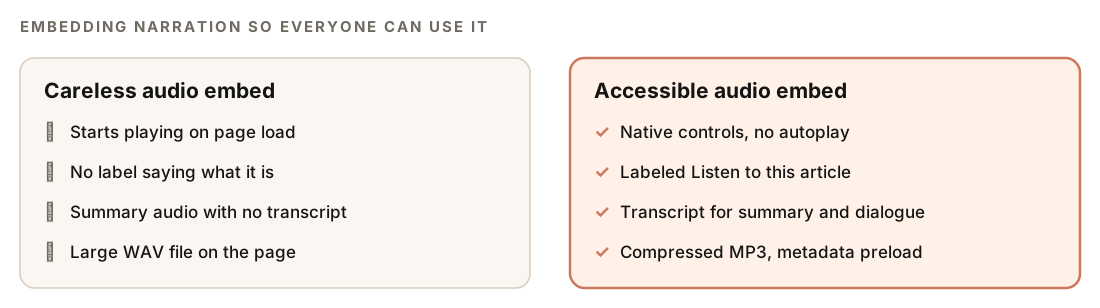
Accessibility guidelines treat audio-only content as something that needs a text alternative. WCAG success criterion 1.2.1 asks for one, with an exception when the audio is a media alternative for text that's already on the page and is clearly labeled as such. That gives you a simple rule per mode:
- Full mode reads the article itself, with only light spoken adaptations, so the article can serve as the text alternative. Label the player clearly as an audio version of the article.
- Summary and dialogue modes say things the article doesn't say in the same words. Publish a transcript, either below the player or behind a "Read the transcript" link.
You don't need to write that transcript from scratch. Claude writes the spoken script to a temporary text file before generating audio, so ask it to save a copy next to the MP3, and publish that.
Two more rules apply to every mode. Don't autoplay: sound that starts on its own is disruptive, and WCAG requires a way to pause or stop audio that plays automatically for more than a few seconds. And keep the native controls attribute instead of building a custom player you'd then have to make keyboard-accessible.
How it fits the Claude Blog workflow
The command works on its own, but the writing workflow can also call it. When /claudeblog write generates audio as part of the 4-agent content pipeline, the skill returns a short block:
### Audio Narration
- **Path:** [path to audio file]
- **Duration:** [m:ss]
- **Voice:** [voice name]
- **Embed:** [HTML5 audio tag]
If the API key isn't set, the skill returns immediately without an error and the writing workflow carries on without audio. Missing audio never blocks a post.
In the wider editorial workflow, audio fits after a post is final. Generate narration once the text is approved, because any later edit means the audio no longer matches. Dialogue audio also pairs well with your other distribution formats; our guide to repurposing blog posts with Claude Code covers turning one post into social threads, newsletters, and scripts.
How to fix common audio problems
| Problem | What to do |
|---|---|
| API key not set | Create a key in Google AI Studio and set GOOGLE_AI_API_KEY |
| FFmpeg not found | Install FFmpeg; until then the output is WAV |
| Rate limited | Wait and try again |
| Text too long | Split the post into sections and generate each one separately |
| Unknown voice name | Run /claudeblog audio voices to see valid names |
| API error | Check that the key is valid and the model is available |
Doing it without the skill
Plain Claude Code can't produce sound by itself, but it does the hardest part well: writing a script that sounds right when spoken. Use it to prepare text for whatever TTS tool you already have:
Read content/blog/my-post.md and rewrite it as a script for text-to-speech. Turn headings into spoken transitions, keep link anchor text but drop URLs, describe code blocks in one sentence each, turn lists into sentences, remove frontmatter and HTML, and start with "This is [title], published on [date]." Save it as my-post-audio.txt.Then have it wire up the player and transcript:
Add an audio player for /audio/my-post.mp3 to content/blog/my-post.md, below the introduction. Use a native audio element with controls and preload="metadata", no autoplay, a "Listen to this article" label, and a link to the transcript saved at my-post-audio.txt.The skill adds the parts you'd otherwise script yourself: the Gemini TTS call with voice and model selection, two-speaker dialogue audio, MP3 conversion, cost estimates, and quiet integration with the writing pipeline.
Mistakes to avoid
- Publishing audio instead of text. Keep the full article on the page; narration is an extra format.
- Autoplaying the player. Let readers choose to press play.
- Skipping transcripts for summaries and dialogues. Those versions don't follow the article's text.
- Narrating drafts. Generate audio after the final edit, or regenerate when the post changes.
- Shipping WAV files. Install FFmpeg and publish MP3.
- Switching voices on every post. One consistent voice makes narration feel like part of your brand.
Related guides
- AI images for SEO with Claude Code, which uses the same Google AI API key
- Repurpose blog posts for X, LinkedIn and email for more ways to reuse one post
- The Claude Code content writing workflow, from brief to published post
FAQ
Does audio narration help blog SEO?
Not directly. Search engines rank pages based on their text, so the written article still does the SEO work. Audio makes a post more useful to people who prefer listening, which is a good enough reason on its own.
Do I need a transcript for blog audio?
If the audio is a reading of the article that adds no new content, and it's clearly labeled, the article itself serves as the text alternative. Summaries and dialogues say things differently, so publish a transcript for those. The script Claude prepares before generating audio works well as that transcript.
What audio format is best for blog posts?
MP3 is the usual choice because it's compressed and plays in every modern browser. The skill outputs MP3 when FFmpeg is installed and WAV otherwise. WAV files are much larger, so convert them before publishing.
How much does Gemini text-to-speech cost?
Google sets the price, so check its current pricing for the Gemini API. The skill reports an estimated cost after each generation. The skill describes the default flash model as the faster, cheaper option and pro as the higher-quality one.
Should a blog audio player autoplay?
No. Sound that starts on its own is disruptive and an accessibility problem. Use the native audio element with controls, label it clearly, and let readers press play.
Can I turn a blog post into a podcast episode?
Dialogue mode comes close: it writes a two-person conversation about the article and generates it with two different voices, typically 3 to 8 minutes long. Publishing it as a podcast feed is a separate step outside the skill.