
Technical SEO
Multi-Page Lighthouse Audit with Claude Code
Run a multi-page Lighthouse audit with Claude Code: test up to 200 routes locally, read lab vs CrUX field data, and find the slow templates to fix first.
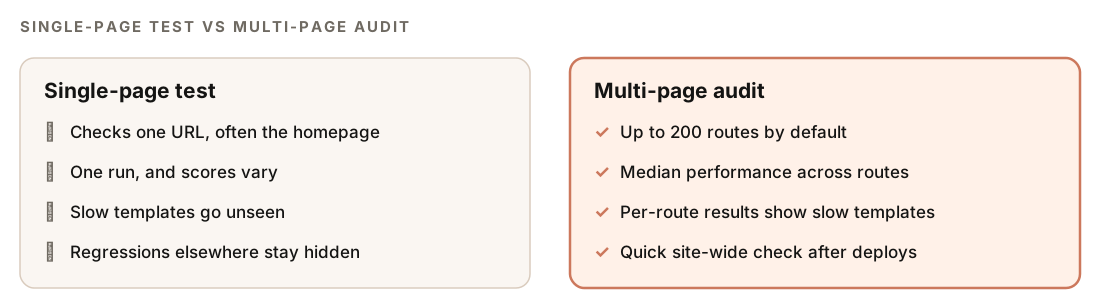
A multi-page Lighthouse audit runs Google's Lighthouse against many pages of your site instead of one, so you can see which page templates are slow, not just whether the homepage is fast. In Claude Code, the ClaudeSEO /claudeseo unlighthouse command does this locally with the Unlighthouse CLI: it needs no API key, tests up to 200 routes by default, and reports a median performance score across them.
This guide explains how Lighthouse lab data differs from real-user field data, why single-page tests mislead, how the command works, and how to turn the results into template-level fixes.
Key takeaways
- Lighthouse is a lab test: one simulated page load in a controlled setup. Real-user field data from the Chrome UX Report (CrUX) is what Core Web Vitals assessments are based on.
- A single-page test often checks your best-optimized page and misses slow templates. A multi-page audit shows the spread.
/claudeseo unlighthouse <url>runs locally, audits mobile by default, caps at 200 routes, and writes JSON and HTML reports.- The good thresholds for Core Web Vitals are LCP at or under 2.5 seconds, INP at or under 200 milliseconds, and CLS at or under 0.1.
- Prioritize by template and traffic. One fix to a template improves every page built from it.
What is the difference between Lighthouse and field data?
Lighthouse is a lab tool. It loads a page once in a controlled environment, by default as a mobile device with a simulated slower network and CPU, and scores it from 0 to 100 in four categories: Performance, Accessibility, Best Practices, and SEO. Lab data is repeatable and diagnostic. It shows you what blocks rendering, which image is the largest element, and how much JavaScript runs on load.
Field data comes from real visitors. The Chrome UX Report (CrUX) collects performance data from Chrome users who opted in, over a rolling 28-day window. Google assesses Core Web Vitals at the 75th percentile of page visits, so a page passes a metric when at least three in four visits meet the good threshold. Google describes how this data relates to Search in its page on Core Web Vitals and Google Search results.
The two often disagree, and both can be right. Your visitors use different devices, networks, and locations than the lab setup. They arrive with warm caches, see personalized content and different ads, and actually click things. A page can score well in Lighthouse and still fail in the field, or the other way around.
The three Core Web Vitals
| Metric | What it measures | Good | Needs improvement | Poor |
|---|---|---|---|---|
| LCP (Largest Contentful Paint) | When the main content appears | 2.5s or less | 2.5s to 4.0s | Over 4.0s |
| INP (Interaction to Next Paint) | How fast the page responds to input | 200ms or less | 200ms to 500ms | Over 500ms |
| CLS (Cumulative Layout Shift) | How much the layout jumps around | 0.1 or less | 0.1 to 0.25 | Over 0.25 |
INP replaced First Input Delay (FID) as the responsiveness metric, so ignore any advice that still talks about FID. Lighthouse can't measure INP in a standard page load, because nobody clicks anything. It reports Total Blocking Time (TBT) instead, which flags the same kind of main-thread blocking that makes interactions slow. The web.dev guide to Web Vitals defines each metric in detail.
Lighthouse colors its category scores in bands: 90 to 100 is good, 50 to 89 needs improvement, and 0 to 49 is poor. Treat the score as a diagnostic summary, not a target in itself.
Why do single-page tests mislead?
It's common to test the homepage in PageSpeed Insights, see a decent score, and move on. That hides several problems:
- The homepage is rarely typical. It often gets the most attention. Product pages, blog posts, and category pages run on different templates with different images, scripts, and widgets.
- One run is noisy. Lighthouse scores vary from run to run. A median across many pages is much steadier than any single result.
- Regressions hide on other templates. A new review widget on product pages or a heavy embed on blog posts won't show up in a homepage test.
- Field data may be origin-level only. In PageSpeed Insights, a page without enough traffic for its own CrUX data shows origin-level data, which blends every page together.
A multi-page audit fixes the first three by testing many routes (URL paths) and aggregating the scores. Field data then tells you how real visitors experience the pages that have enough traffic.
What the /claudeseo unlighthouse command does
The command is part of the Claude SEO skill suite. It wraps the Unlighthouse CLI, which runs Lighthouse against the URLs on your site up to a cap you choose, then aggregates the results.
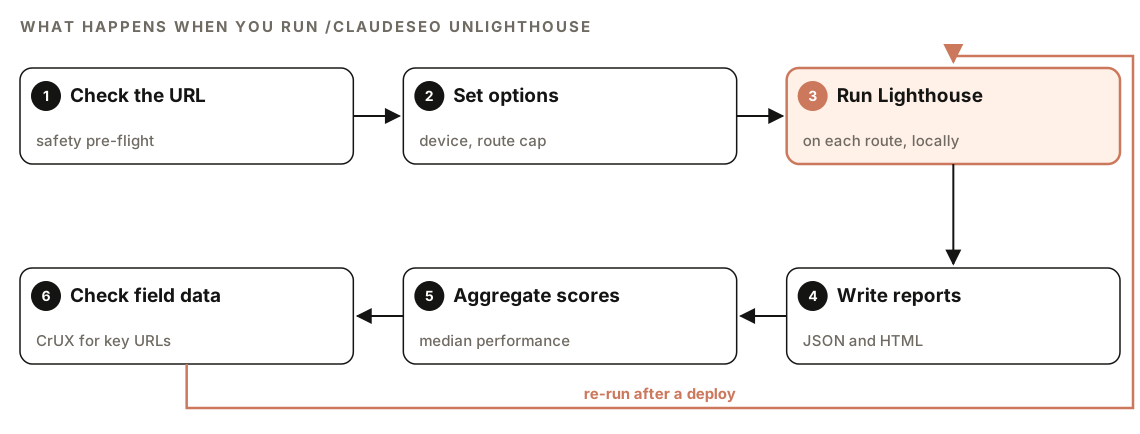
- Check the URL. A safety pre-flight check runs on the URL before anything starts, and the wrapper manages timeouts so a stuck run doesn't hang your session.
- Set options. By default it audits the mobile form factor and caps the run at 200 routes. You can switch to desktop, change the cap, and choose where reports are saved.
- Run Lighthouse on each route. Everything runs on your machine. There's no API key and no PageSpeed Insights API quota involved.
- Write reports. Unlighthouse produces a JSON and an HTML report, in a temporary folder unless you set an output folder.
- Aggregate scores. The skill reads the result file and returns the aggregate scores, including the median performance score across all audited routes.
- Check field data. For real-user data on a single URL, the skill hands off to the Google integration's PageSpeed Insights and CrUX commands.
That makes it useful in three situations the skill names: a site too large to test page by page through the PageSpeed Insights API, environments where you want local measurement (such as CI pipelines or restricted networks), and a quick site-wide regression check after a deploy.
What the multi-page Lighthouse report contains
| Field | What it tells you |
|---|---|
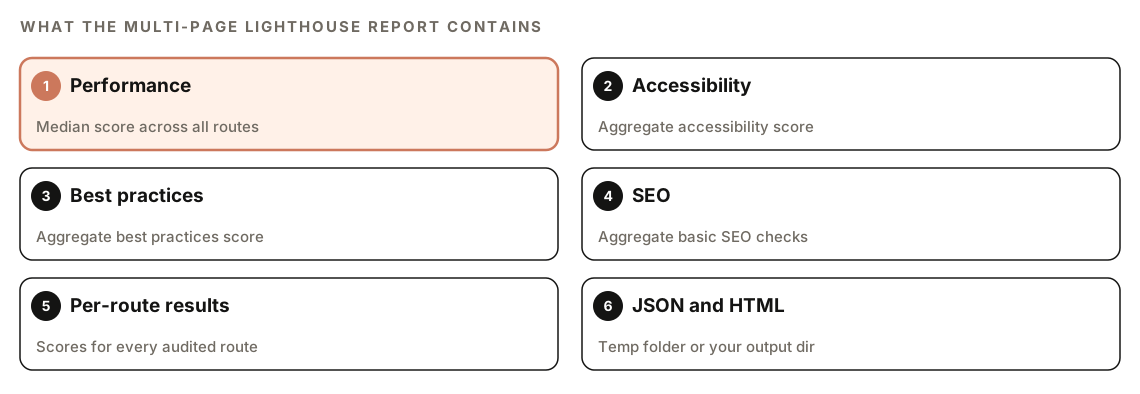
| Performance | Median Lighthouse performance score across all audited routes |
| Accessibility | Aggregate accessibility score |
| Best practices | Aggregate best practices score |
| SEO | Aggregate score for Lighthouse's basic SEO checks |
| Per-route breakdown | Scores for each route, in the result file in the output folder |
The median is the right summary for performance because a handful of very slow or very fast pages can't drag it around the way they would an average. The per-route breakdown is where the useful detail lives.
How to run a multi-page Lighthouse audit
Open your project in Claude Code with ClaudeSEO installed (our guide to installing SEO skills in Claude Code covers setup). The command needs the Unlighthouse extension for Claude SEO, which installs without an API key, and Node.js 18 or newer:
node --versionRun the default mobile audit:
/claudeseo unlighthouse https://www.example.comAudit the desktop form factor instead:
/claudeseo unlighthouse https://www.example.com --device desktopCap the run at 50 routes and keep the reports in your project:
/claudeseo unlighthouse https://www.example.com --max-routes 50 --output-dir ./reportsUse --output-dir whenever you want to compare runs later, for example before and after a deploy. Reports in the temporary folder won't stick around. You can also ask in plain English:
Run a mobile Lighthouse audit across up to 100 pages of https://www.example.com and save the reports to ./reports/before-redesign.For field data on your most important URLs, use the Google integration. Our guide to Search Console, GA4 and PageSpeed data in Claude Code covers its setup:
/claudeseo google psi https://www.example.com/pricing
/claudeseo google crux https://www.example.com/pricing
How to read the results and prioritize templates
Start with the median performance score for the site-wide picture, then open the per-route breakdown. The goal is to find the templates that are slow, not individual URLs.
Group the routes by URL pattern, because pages on the same pattern usually share a template: /blog/*, /products/*, /category/*, and so on. Then rank the groups by two things together:
- How poor the scores are. A template whose pages sit in the 0 to 49 band is a bigger problem than one in the 80s.
- How much traffic the template gets. Use Search Console or analytics. A slow template that earns most of your organic visits matters more than a slow archive page few people see.
Claude Code can do the grouping for you:
Read ./reports/ci-result.json. Group the routes by URL pattern (first path segment), and for each group show the number of routes, the median and worst performance score, and the three slowest routes. Sort the groups from worst median to best.Then check field data for the top URL in each slow group. If CrUX also shows a failing metric, you've confirmed a real-user problem. If the field data passes, the lab result still points to something worth fixing, but it's less urgent.
For a full audit, Claude SEO's performance analyzer takes the same approach: it prefers CrUX field data when Google API credentials are configured and falls back to lab data when CrUX has no data for a URL because traffic is too low. It reports a performance score, pass or fail for each Core Web Vital, the bottlenecks it found, and recommendations ranked by expected impact.
How to fix common Core Web Vitals problems
Fix at the template level. These are the common causes the performance analyzer looks for.
Slow LCP
Unoptimized hero images, render-blocking CSS and JavaScript, slow server response, third-party scripts that block rendering, and web fonts that load late. Compress the hero image, serve WebP or AVIF, give it a high fetch priority, and never lazy-load it:
<!-- Hero image: explicit size, high priority, not lazy-loaded -->
<img src="/images/hero.webp" width="1200" height="600" fetchpriority="high" alt="Product dashboard overview">

<!-- Images further down the page can load lazily -->
<img src="/images/chart.webp" width="800" height="450" loading="lazy" alt="Monthly signups chart">
Poor INP or high TBT
Long JavaScript tasks on the main thread, heavy event handlers, a very large DOM, third-party scripts that take over the main thread, and synchronous work that blocks input. Break long tasks into chunks under 50 milliseconds, debounce handlers, and load third-party scripts later or not at all.
High CLS
Images without width and height, content injected above existing content, web fonts that swap in late, and ads or embeds without reserved space. Set dimensions on every image and reserve space for slots that fill later:
<div class="ad-slot" style="min-height: 250px"></div>Once you know which template to fix, ask Claude Code to make the change:
The /products/* routes have the worst performance scores. Open the product page template, find the LCP image and any render-blocking scripts, and propose changes: image priority and dimensions, deferred scripts, and reserved space for the reviews widget. Show me the diff first.After the fix ships, run the same command with the same device and route cap, and compare the reports.
Doing it without the skill
If you have Node installed, plain Claude Code can run the Lighthouse CLI on a sample of pages:
Read https://www.example.com/sitemap.xml and pick three URLs from each URL pattern. For each URL, run npx lighthouse with JSON output in headless Chrome, then extract the performance score, LCP, TBT, and CLS. Write a table per pattern with the median of each metric and save the raw JSON files to ./lighthouse.For field data without credentials, test your top URLs by hand in PageSpeed Insights, which shows CrUX data above the lab results when the page has enough traffic.
The skill adds an installer, route discovery up to a cap, URL safety and timeout handling, aggregated scores with a median for performance, a desktop switch, saved reports, and a hand-off to field data.
Multi-page Lighthouse audit mistakes to avoid
- Chasing a perfect score. Lighthouse scores are diagnostics. Real-user Core Web Vitals and useful content matter more than a 100.
- Testing only the homepage. It's often your most optimized page. Test every major template.
- Comparing runs from different setups. Lab results depend on the machine running them. Compare runs from the same machine, device setting, and route cap.
- Ignoring field data. Confirm lab problems with CrUX before spending weeks on them.
- Testing desktop only. The default is mobile for good reason. Check desktop as a second pass.
- Skipping the re-run. Re-audit after each fix or deploy to catch regressions early.
Related guides
- Technical SEO audit with Claude Code, which covers Core Web Vitals alongside crawlability and indexing
- Search Console, GA4 and PageSpeed data in Claude Code for CrUX field data
- SEO drift monitoring with Claude Code to catch regressions between releases
- Technical SEO features and the full site audit, where the performance analyzer runs
FAQ
What is a multi-page Lighthouse audit?
It's a Lighthouse test run across many pages of a site instead of one. You get aggregate scores, such as a median performance score, plus results for each page, so you can see which templates are slow and which are fine.
Why is my Lighthouse score different from my Core Web Vitals in Search Console?
Lighthouse is one simulated page load in a lab. Search Console and PageSpeed Insights field data come from real Chrome users over 28 days, measured at the 75th percentile. Different devices, networks, caches, and interactions make the two differ.
What are good Core Web Vitals scores?
LCP of 2.5 seconds or less, INP of 200 milliseconds or less, and CLS of 0.1 or less, each measured at the 75th percentile of page visits. A page needs all three in the good range to pass.
Does the unlighthouse command need an API key?
No. It runs Lighthouse locally through the Unlighthouse CLI, so it needs no API key and uses no PageSpeed Insights API quota. You need the Unlighthouse extension for Claude SEO and Node.js 18 or newer.
Can Lighthouse measure INP?
Not in a standard page load, because INP needs real user interactions. Lighthouse reports Total Blocking Time instead, which points to the same main-thread problems. Use CrUX field data to see your real INP.
How many pages should a Lighthouse audit cover?
Enough to cover every major template with several pages each. The command caps runs at 200 routes by default. On large sites, a lower cap such as 50 is often enough for a quick check after a deploy.